
E3 ENGINE Motion Controller for Dobot MG400 / Robot arm control with a DualSense controller
Move the arm,
from your hands.
E3 ENGINE Motion Controller for Dobot MG400 is a Windows application for operating the Dobot MG400 desktop robot arm with a PS5 DualSense wireless controller. It is intended for jogging and for pick-and-place demonstrations, and it is built with safety first.
Free of charge / no licence file / latest version 1.3.0 (2026-11-06) / Windows 10 and 11 (64-bit)
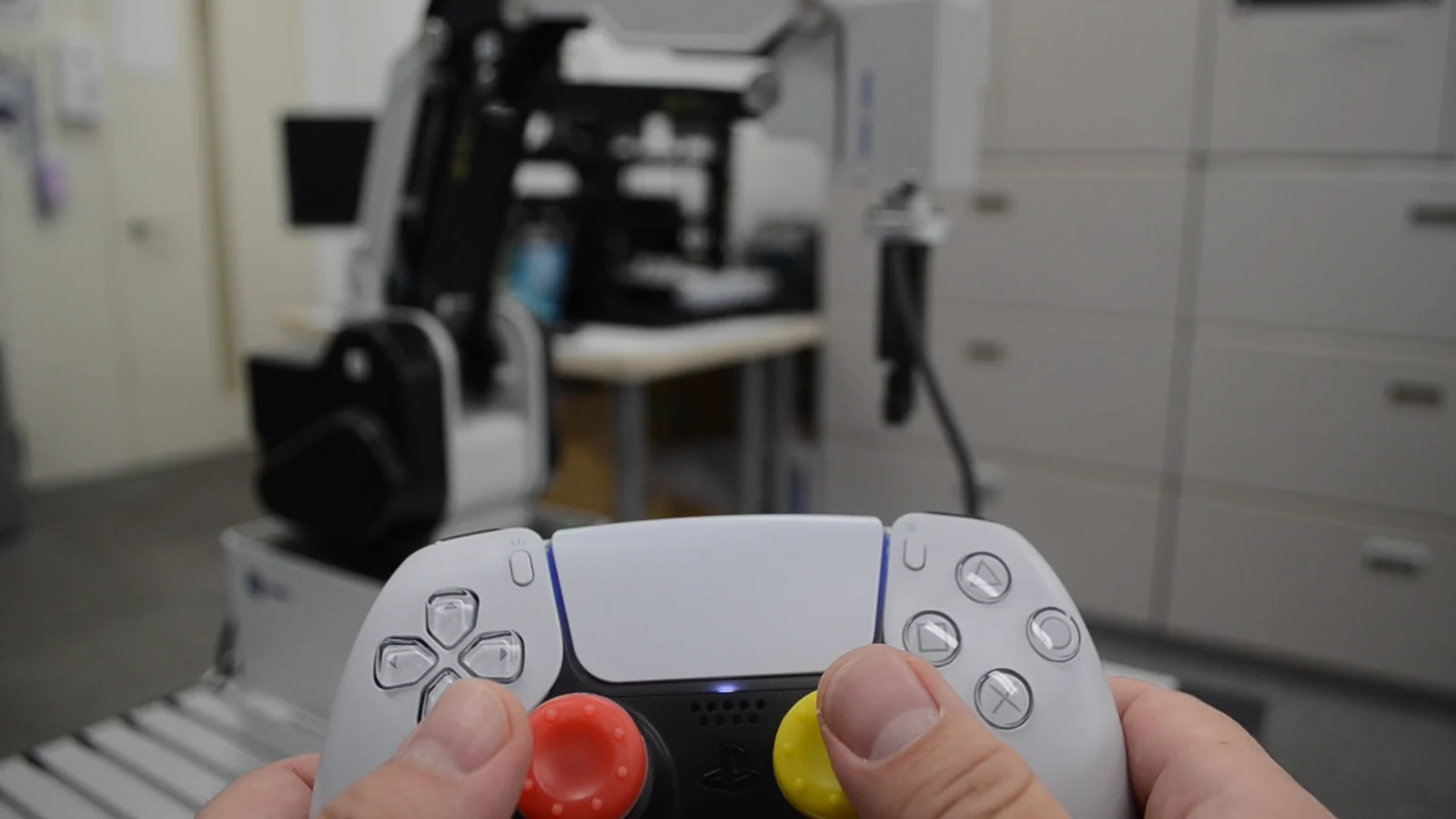
From the operator’s side. The operator stands behind the robot, and the stick directions match this view.
See it move
From jogging
to pick and place.
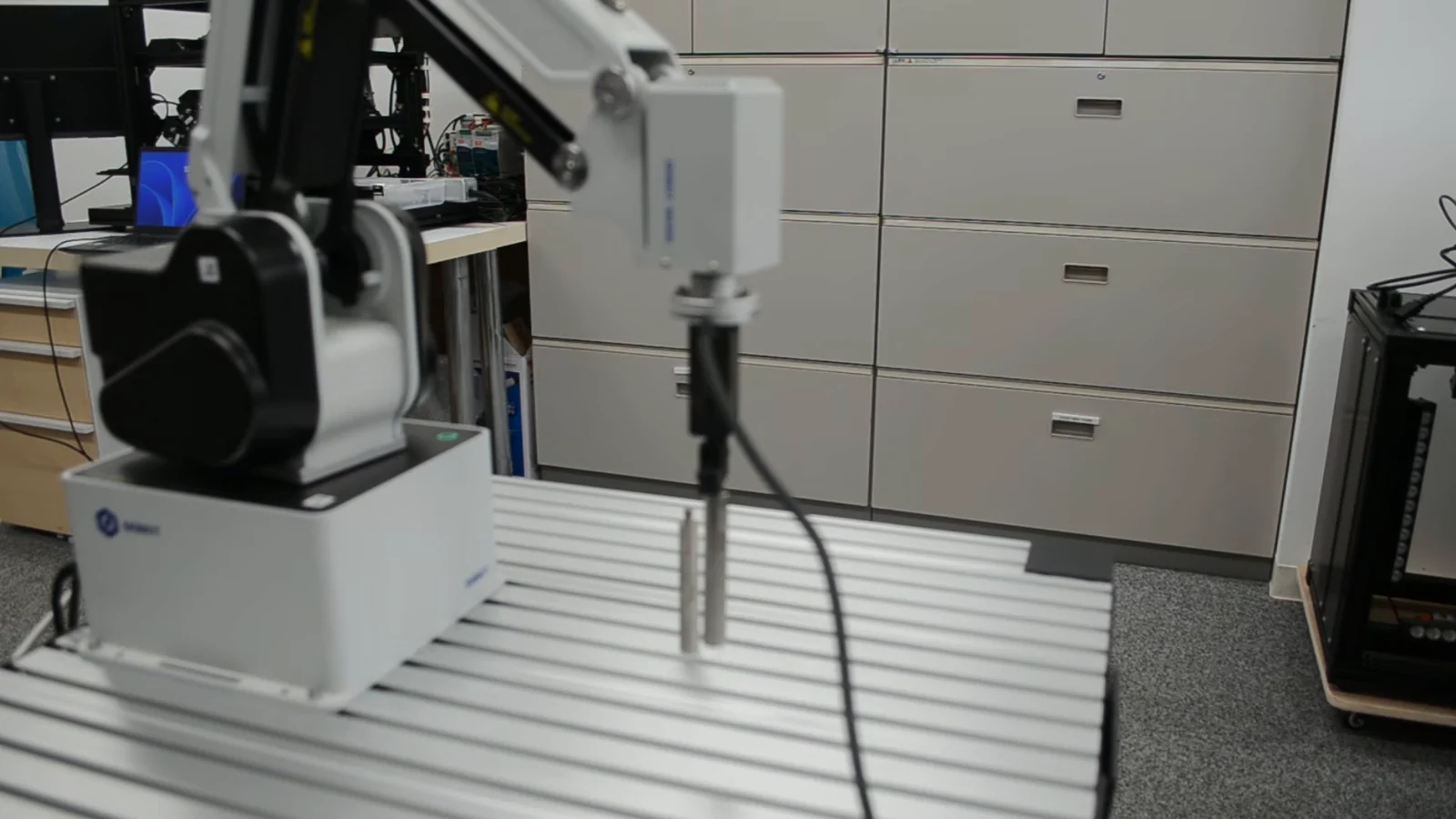
Jogging with the sticks, switching speed and 1 mm steps, pick and place through recorded points, the emergency stop and automatic stops, and a tour of the screen. Three minutes of the real robot moving.
 3:03
TOMOMI RESEARCH / YouTube Watch on YouTube ↗
Filmed by us in our own office, operating the real robot. The narration and captions are in Japanese. Nothing is sent to YouTube until you press play (the player then switches to youtube-nocookie.com).
Key features
Move it, record it,
send it home, grip.
Move the arm with the sticks, record where to pick and where to place, and send the arm through the recorded points in order. The operations a pick-and-place demonstration needs are on one controller. Without a controller, every operation can also be run from the buttons on the screen.
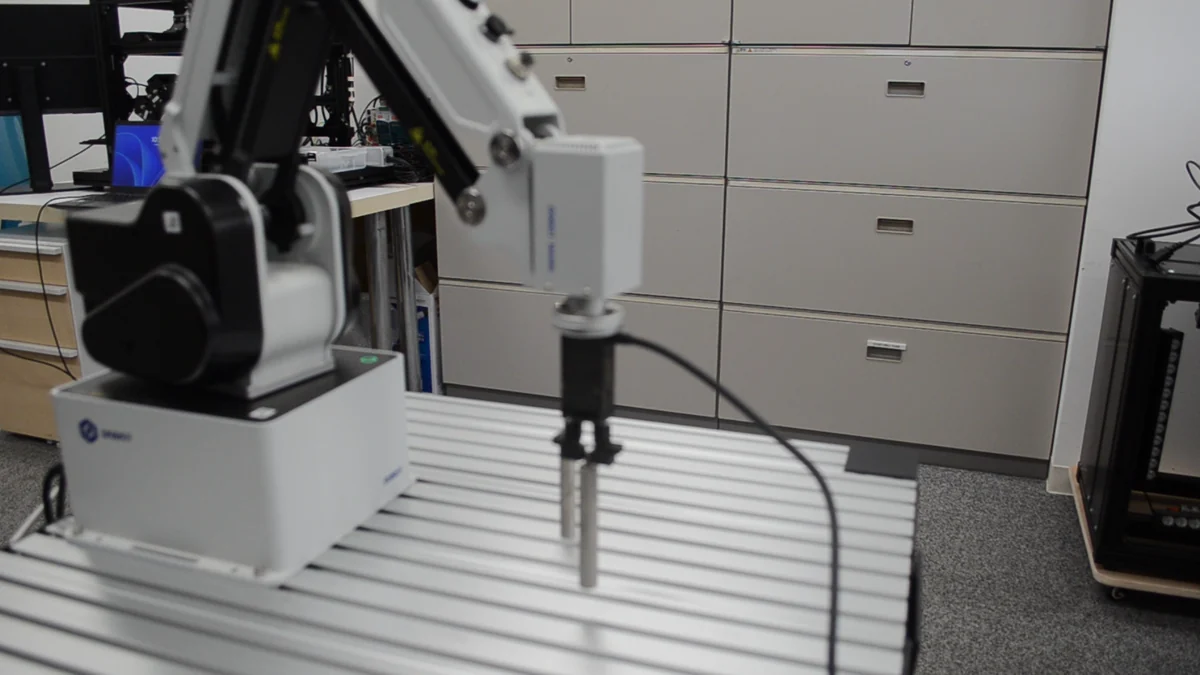
Grip. Descend to the recorded point and close the gripper with ×.
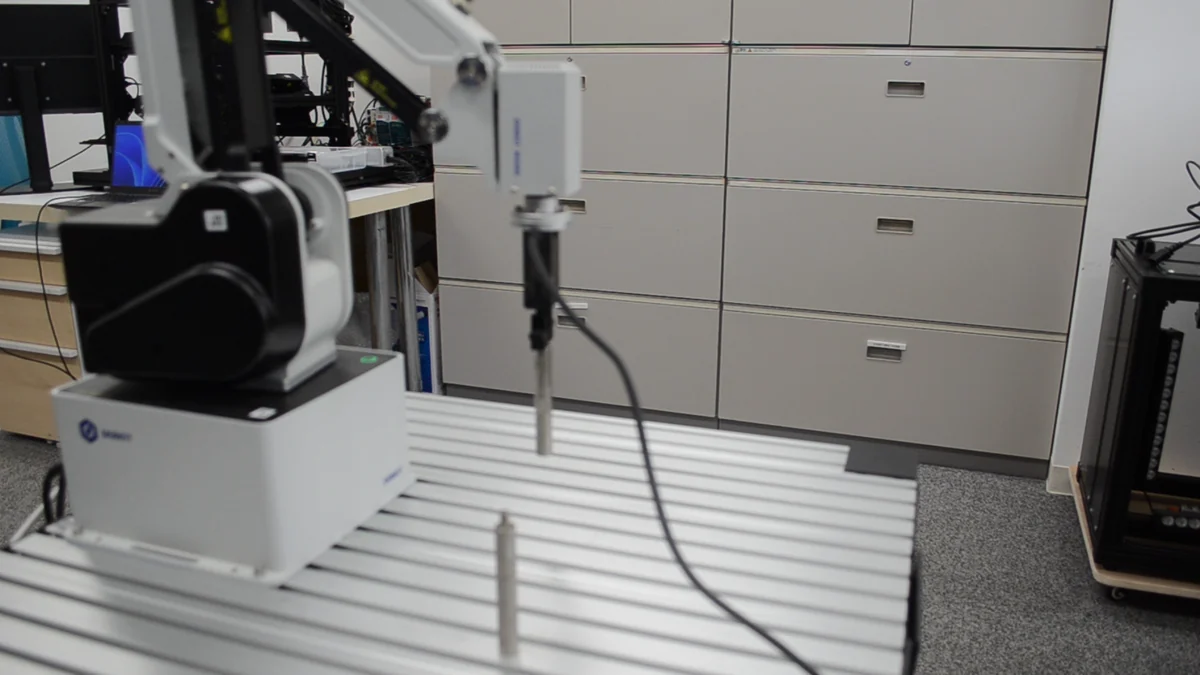
Carry and place. ○ moves to the next point, always by a safe height.
One axis at a time, from the sticks.
The left stick moves X and Y; the right stick moves Z (height) and R (rotation of the end). Only the axis pushed furthest moves. R1 switches between four speed levels (slow 10%, medium 30%, fast 60%, max 100%), and the controller vibrates once for each level. The D-pad moves X and Y in 1 mm steps.
Through the recorded points, by a safe height.
□ records the current position (up to 10 points), and each press of ○ moves to the next recorded point in order. Every move runs in three stages: rise to a safe height, move across to directly above the target, then descend to the target height. If the path would leave the workspace, the arm does not move. Recorded points are kept for the next start-up.
Return home, grip, release.
△ moves to the home position and × opens or closes the gripper. The gripper is connected to the robot’s digital output DO_01. The gripper button on the screen shows whether it is open or closed.
What state it is in, and what to do next.
The band at the top of the screen shows the connection, enable and jog state and the content of any alarm, and tells you the next thing to do. On the DualSense map, the button you press lights up. Coordinates, joint angles, speed, gripper and the number of recorded points are listed under Robot Status.
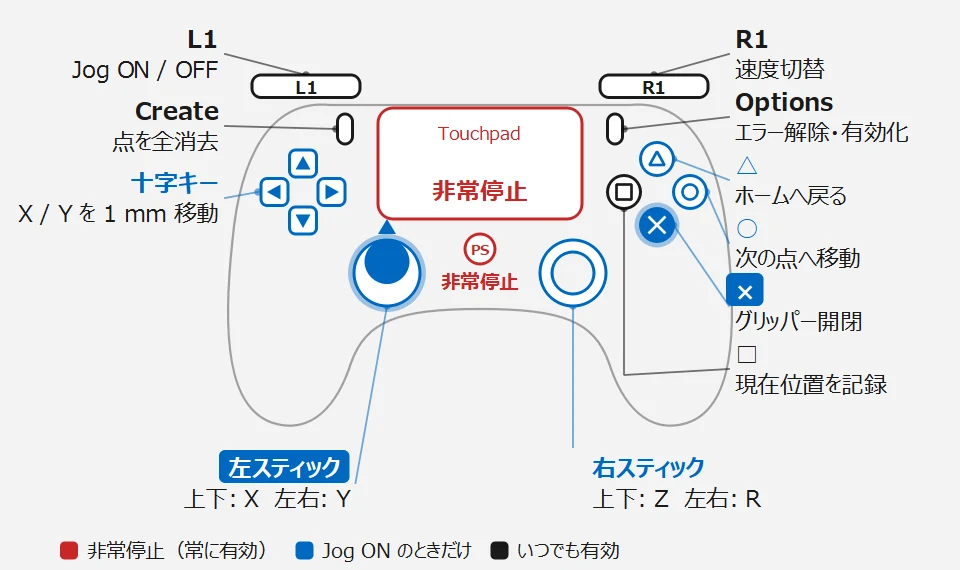
The controller map (part of the application screen, labels in Japanese). The button you press lights up. Red is emergency stop (always active), blue works only while jog is on, black works at any time.
The operator stands behind the robot.
Stick directions match the view of an operator standing behind the robot and facing the same way. Pushing the left stick up moves the arm away from the robot (+X).
A jog continues until you release the stick, and stops when you do. When you change axis or reverse direction, the application waits for the robot to stop before starting the next motion.
Safety
Not a safety device.
So how it stops came first.
This software is not a safety device. Keep the robot’s hardware emergency stop within reach at all times. On top of that, the software gives you ways to stop the robot, and conditions under which it stops on its own.
Stop at any time.
The PS button or touchpad on the controller, or the EMERGENCY STOP button on the screen. Always active whatever the jog state. It cancels the motion and any planned moves, and disables the robot.
Stops on its own when something is wrong.
If no status arrives from the robot for 0.5 seconds or more, if the controller disconnects, if the robot can no longer be operated, or if a command fails, jog is switched off and the robot is stopped at once.
Stops short of the edge.
The workspace is checked on the PC. Jogging stops short of the edge, with a larger margin at higher speeds. At the edge the controller vibrates to tell you. Moves that would leave the workspace are not run.
This software is not a safety device. Keep the robot’s hardware emergency stop within reach at all times.
The arm can swing almost directly behind the base (the base angle reaches ±155°). Make sure that no people or objects are within the robot’s range during operation.
While connecting (Connect) and enabling (Enable, from a few seconds up to 15 seconds), the on-screen emergency stop responds late, because the application is waiting for the robot to answer. If you need to stop during this time, use the robot’s hardware emergency stop.
The lower workspace limit (Z −91.4 mm) was set for our own installation. If your table height differs, move slowly and check for interference.
Without a controller
No controller?
It still moves.
The DualSense is optional. Connecting, enabling, switching jog, speed levels, home, the gripper, and recording and moving to points can all be run from the buttons on the Control tab at the right of the screen.
The controller works over Bluetooth or a USB cable, and is recognised again automatically if it is unplugged and reconnected while the application is running. The Bluetooth settings can be opened from a button on the Control tab.
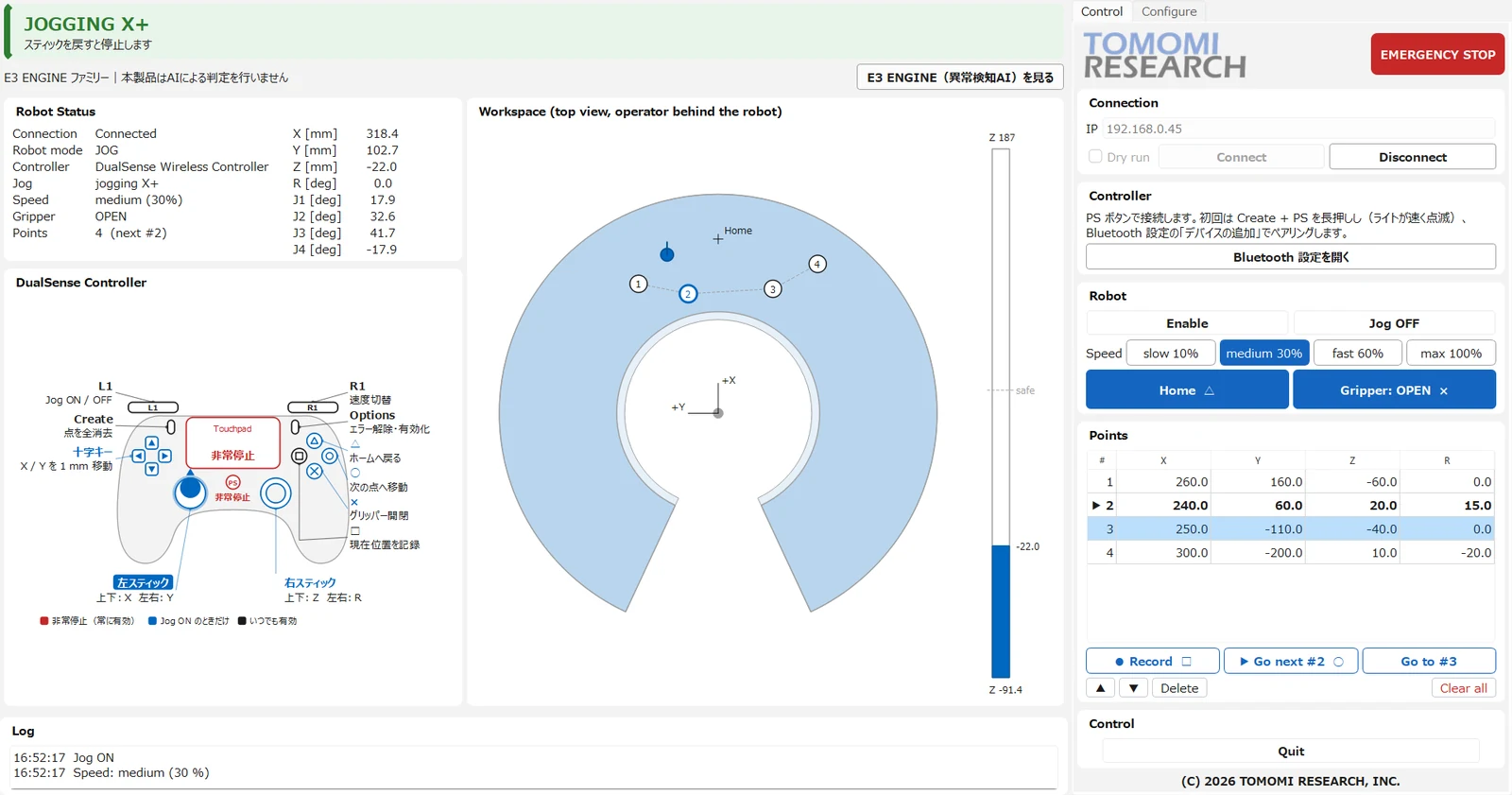
The main window in version 1.3.0, while jogging. The Control tab is on the right. Labels on the screen are in English; some guidance text is in Japanese.
Where it fits
It makes no judgement.
It moves the arm.
E3 ENGINE Motion Controller for Dobot MG400 is software in the E3 ENGINE family, alongside our anomaly detection engine. It makes no AI judgement. Its job is to move a desktop robot arm from your hands, and to show pick and place.
An anomaly detection engine that learns from good parts only and answers in three values: OK, Human_Check and NG. Judging good from bad is its job.
Learn more →
The three layers of sensor, anomaly detection engine and system, and the software that can be used on its own.
See all products →
Specifications
A Windows PC,
wired to the robot.
Install it from the installer and connect it to the robot controller over wired Ethernet. The software communicates only with the robot on the LAN, and to check for new versions.
| Product type | Robot arm control software (Windows desktop application), E3 ENGINE family |
|---|---|
| Price | Free of charge |
| Licence | No licence file. You accept the Software License Agreement during installation |
| Latest version | 1.3.0 (2026-11-06) |
| Operating system | Windows 10 / Windows 11 (64-bit) |
| Free disk space | 300 MB or more |
| Display | 1920 × 1080 or larger recommended |
| Robot | Dobot MG400 (tested with controller firmware 1.6.0.0) |
| Connection | Wired Ethernet to the robot controller |
| Game controller | PS5 DualSense wireless controller (optional; Bluetooth or USB cable) |
| Gripper | Connected to the robot’s digital output DO_01 (ON closes it) |
| Jogging | X / Y / Z / R, one axis at a time. Four speed levels (slow 10% / medium 30% / fast 60% / max 100%, as the robot’s speed ratio) |
| Recorded positions | Up to 10 points. Moves through them in order by a safe height. Saved to a file and kept for the next start-up |
| Safety functions | Emergency stop (PS button and touchpad on the controller, button on the screen) / automatic jog off on faults / workspace limits |
| Network | Only communication with the robot on the LAN, and checking for new versions (can be turned off on the Configure tab) |
| Installation | Installer (about 44 MB; administrator rights required). MG400_DualSense_Controller_Setup_v1.3.0.exe |
| Files we send | Installer / READ_ME_FIRST.txt / SHA256SUMS.txt (for verifying the download) / user manual manual_ja.pdf (17 pages) / quick reference cheatsheet_ja.pdf (one A4 page) |
| Language of the manuals | Japanese. READ_ME_FIRST.txt is in English and Japanese |
* This software is not a safety device, and it makes no AI judgement.
* The installer is not code-signed. The first time it runs, Windows SmartScreen may show “Windows protected your PC”. Select “More info” and then “Run anyway”.
* DualSense and PlayStation are trademarks or registered trademarks of Sony Interactive Entertainment Inc. Dobot and MG400 are trademarks or registered trademarks of Shenzhen Yuejiang Technology Co., Ltd. This software is not affiliated with these companies.
What’s new in 1.3.0
What changed
in version 1.3.0.
Released on 2026-11-06. If you use 1.2.0 or earlier, running the installer updates it in place.
| Speed levels | New speed level max (100%). It applies to stick jogging only; moves to home and to recorded points run at the fast (60%) speed |
|---|---|
| Workspace | Now follows the shape in the DOBOT MG400 Hardware Guide: the radius depends on the height (188–440 mm), the base angle is ±155°, and the upper height limit is 187 mm. A margin is kept from the joint limits |
| Control tab | Buttons reorganised. Home and Gripper are larger, and Gripper shows whether it is open or closed. The Points buttons are split into recording and moving, and editing the list |
| Update notice | The application now tells you when a new version is available (can be turned off on the Configure tab) |
| Emergency stop | The emergency stop on the Space / Esc keys was removed. Use the PS button or touchpad on the controller, or the EMERGENCY STOP button on the screen |
How to get it
From request
to first move.
The software is free of charge. After you request it, we send a download link by email. There is no licence file.
Request it
Through our contact page. Under “What this is about”, choose “E3 ENGINE Motion Controller for Dobot MG400 (free software)”.
Receive the email
We send a download link for the installer, the manuals and the other files within two business days of your request.
Install it
Run MG400_DualSense_Controller_Setup_v1.3.0.exe and accept the licence agreement. Administrator rights are required. The installer is not code-signed, so if Windows SmartScreen shows “Windows protected your PC”, select “More info” and then “Run anyway”.
Set up the robot and connect
Before connecting, set the robot in DobotStudio Pro to “TCP/IP Secondary development”, and disconnect DobotStudio Pro from the robot. The robot can be operated by only one application at a time.
* The download link is sent only by email (it is not published on this page).
* If your company network blocks Google Drive, contact us at info@tomomi-research.com.
* The application tells you when a new version is available.
Get started
Start by moving
your own MG400.
The software is free of charge. We send a download link by email within two business days of your request. For questions about setting it up or using it, please contact us.
Tel +81-466-54-9003 / info@tomomi-research.com