E3 ENGINE Motion Controller for Dobot MG400: Move the Arm, from Your Hands
 kotai2003
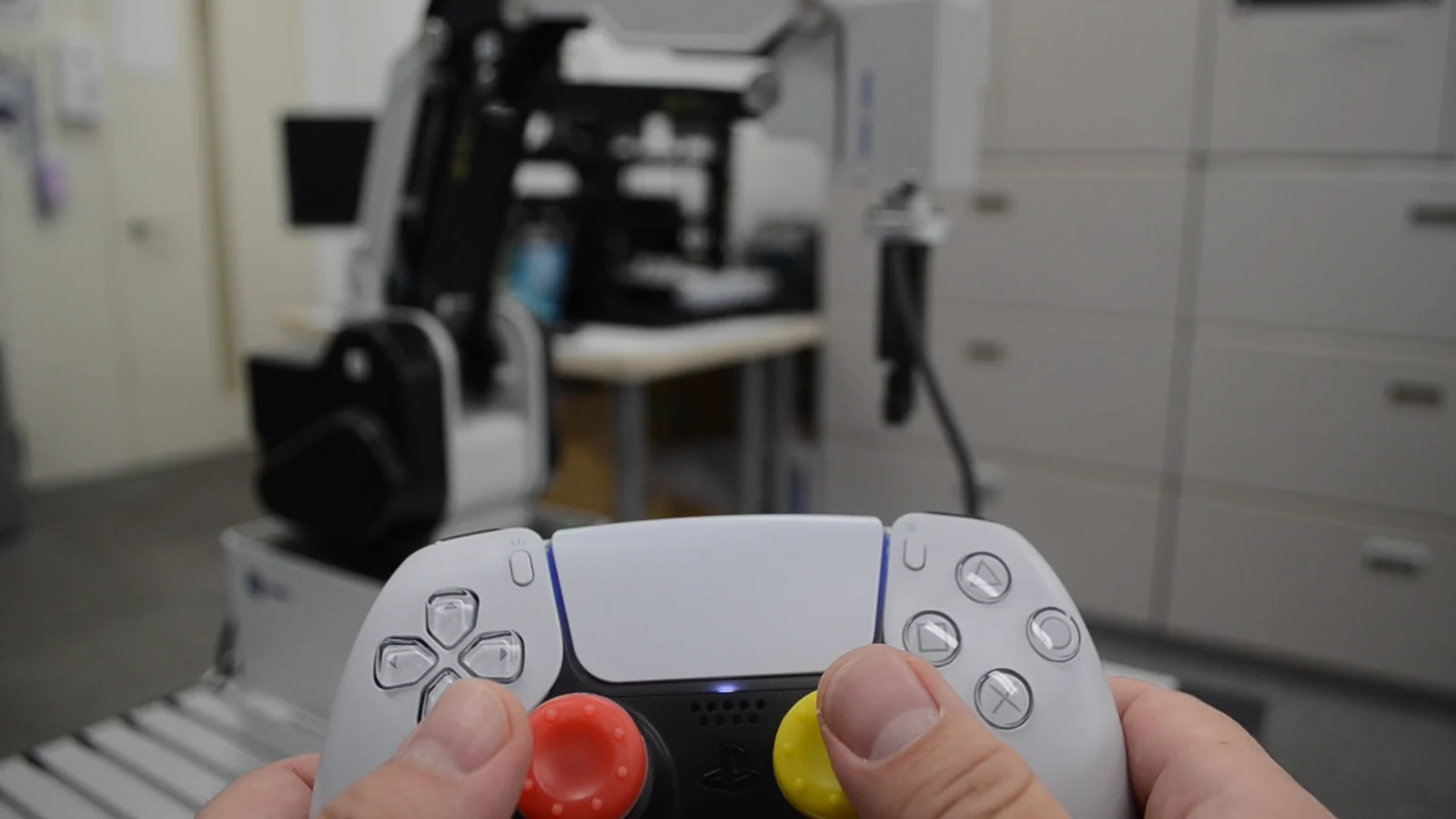
Jog the arm into position, teach a few points, run through them in order: routine work in robot demos, and it should be obvious both how to operate and how it stops.
TOMOMI RESEARCH has published the product page for E3 ENGINE Motion Controller for Dobot MG400, a Windows application that drives a Dobot MG400 desktop robot arm with a PS5 DualSense wireless controller. It is intended for jogging and pick-and-place demos and was built with safety as the first priority. Part of the E3 ENGINE family, it performs no AI-based judgment; verdicts are the job of E3 ENGINE.
Watch: From Jogging to Pick-and-Place
Video in Japanese (3:03), filmed in-house on a real MG400.
01 Jog: One Axis at a Time
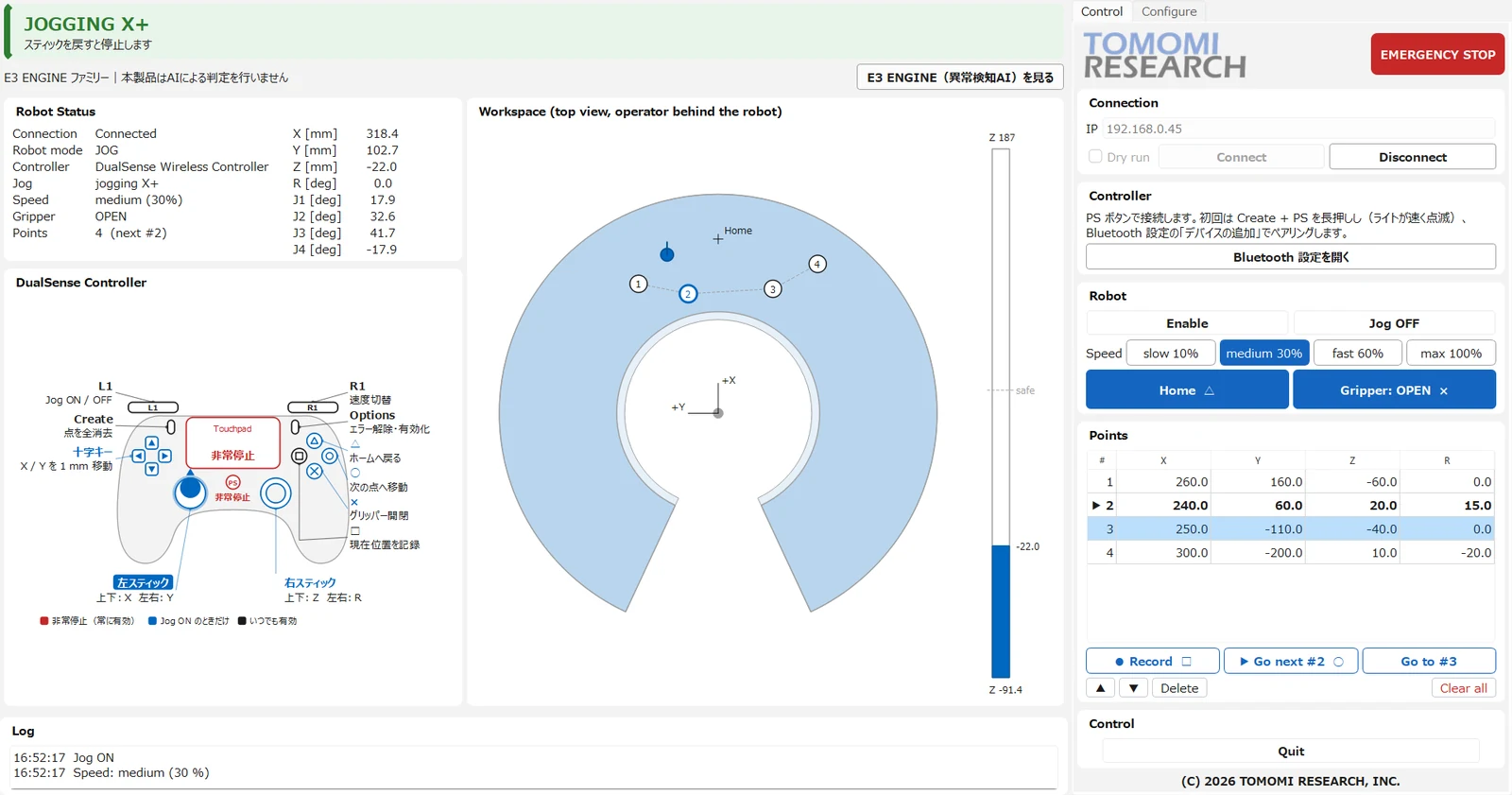
- Left stick: X / Y. Right stick: Z (height) / R (tool rotation).
- Only the axis you deflect furthest moves.
- R1 cycles four speed levels: slow 10%, medium 30%, fast 60%, max 100%. The controller vibrates at each step.
- D-pad nudges X / Y in 1 mm steps for final positioning.
02 Record and Move: Square to Save, Circle to Go
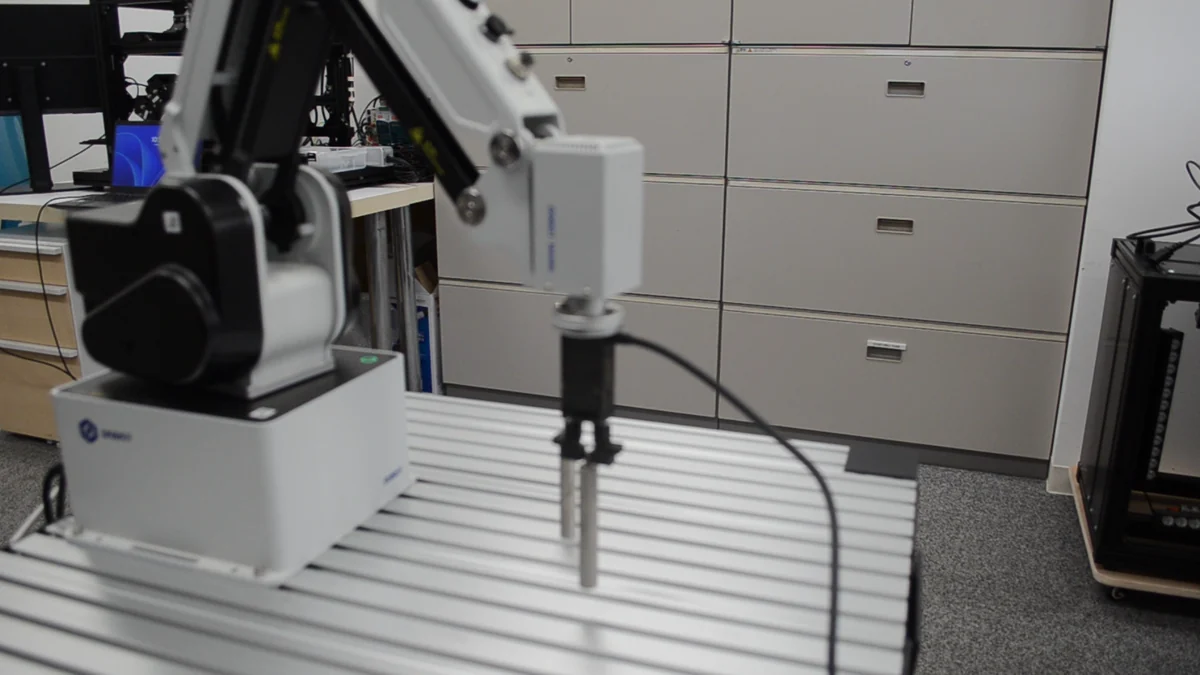
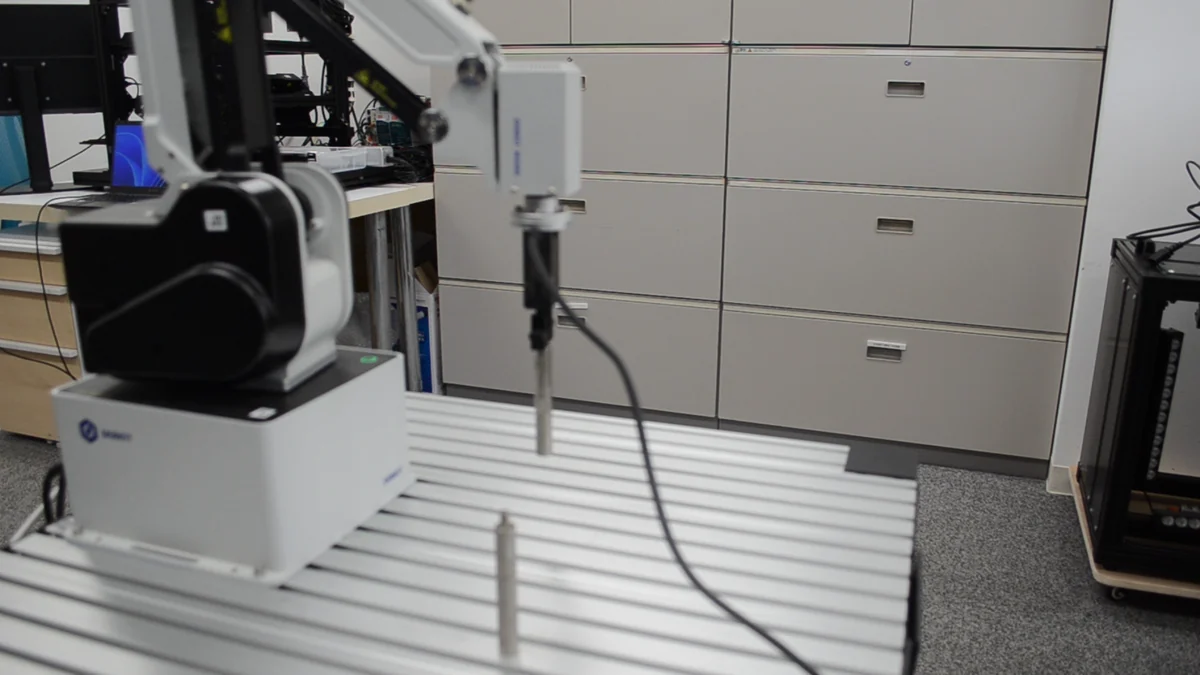
Press Square to record the current position (up to 10 points). Press Circle to move to the next point in recorded order. Every move runs in three stages:
- Rise to a safe height
- Travel horizontally to directly above the target
- Descend to the target height
Paths that would leave the working range are not executed. Recorded points persist across restarts.
03 Home and Gripper
Triangle returns the arm to home. Cross opens and closes the gripper (digital output DO_01).
04 Status and Guidance
A banner at the top shows connection, enable and jog states, alarm details, and the next action to take. Pressed buttons light up on the on-screen DualSense diagram (red: emergency stop, always active; blue: jog only; black: always available). Coordinates, joint angles, speed, gripper state, and point count are displayed.
Not a Safety Device, So We Defined How It Stops First
This software is not a safety device. Keep the robot's own emergency stop switch within reach. The stop behavior was defined before the features:
- Emergency stop, three ways: PS button, touchpad, or the on-screen EMERGENCY STOP. All are active regardless of jog state; each cancels motion and queued moves and disables the robot.
- Automatic jog OFF when robot status has not arrived for 0.5 s or more, the controller disconnects, control becomes unavailable, or a command fails.
- Working-range limits are checked on the PC side. The higher the speed, the earlier the arm stops short of the boundary, and the controller vibrates at the edge.
Two more points before you start:
- The arm can rotate to nearly directly behind its base (base angle ±155°). Keep people and objects out of its range of motion.
- While connecting and enabling (up to 15 s), the on-screen emergency stop responds with a delay. Use the robot's own emergency stop during that time.
No Controller? Use the Control Tab
The DualSense is optional. Connect, enable, jog on/off, speed, home, gripper, and record-and-move are all available as buttons on the Control tab. With a controller, Bluetooth and USB both work, and reconnections are detected automatically while the software runs.
What's New in 1.3.0 (November 6, 2026)
- max (100%) speed added, for stick jogging only; home and recorded-point moves run at fast (60%)
- Working range expanded to match the hardware guide: radius 188–440 mm depending on height, base angle ±155°, height limit 187 mm
- Control tab reorganized
- New-version notification added (can be turned off in the Configure tab)
Requirements and How to Get It
Requirements
- Windows 10 / 11 (64-bit), 300 MB or more of disk space, 1920×1080 or higher recommended
- Dobot MG400 over wired LAN (verified with controller firmware 1.6.0.0)
- DualSense wireless controller: optional
Package: installer (approx. 44 MB, administrator rights required), READ_ME_FIRST.txt, SHA256SUMS.txt, a 17-page user manual (in Japanese), and a one-page A4 quick reference.
Access is by request:
- On the English product page, use the contact form and select this software.
- A download link is sent by email within 2 business days.
- Install and accept the license agreement.
- In DobotStudio Pro, set the mode to "TCP/IP Secondary development", then disconnect DobotStudio Pro. Only one application can control the robot at a time.
The installer is not code-signed. If Windows SmartScreen appears on first launch, click "More info", then "Run anyway".
Summary
E3 ENGINE Motion Controller for Dobot MG400 turns a DualSense into a jog, teach, and pick-and-place tool for the MG400, with every operation also available on screen. It is not a safety device, which is why its stop behavior came first.
Working with a Dobot MG400? Request the software from the product page, where full specifications and setup steps are listed.
- Product page: https://www.tomomi-research.com/en/products/e3-motion-controller-mg400
- Contact: info@tomomi-research.com
DualSense and PlayStation are trademarks or registered trademarks of Sony Interactive Entertainment Inc. Dobot and MG400 are trademarks or registered trademarks of Shenzhen Yuejiang Technology Co., Ltd. This software is not affiliated with these companies.